Working with the Analytics API
Analytics API implements GraphQL-based architecture and can be accessed via the OneAPI gateway. It integrates with Authentication Service, Zscaler's unified identity platform, for authorization and role-based access control. As with any GraphQL API, Analytics API has a single endpoint that allows clients to make API queries across multiple data domains, related to Zscaler reporting and analytics.
This API uses the OAuth 2.0 authorization framework supported in OneAPI and uses the Client Credentials OAuth flow. In this flow, the API client sends a request to the authorization server, i.e., Authentication Service, which provides an access token to the client upon successful authentication. The client uses this access token to make authenticated requests to the protected API. To learn more, see Getting Started.
This article takes you through the configuration steps you need to complete to begin using the Analytics API and making API queries. Before using this API, Zscaler recommends reviewing the Analytics API Reference for information regarding the schema's general structure and supported data domains.
Prerequisites
Before you begin, ensure that you have registered the API client with Authentication Service and selected an appropriate role for the client. Authentication Service provides a default Zscaler Insights Reader role.
You can use API client applications that support GraphQL client interface, such as Postman or Insomnia, to explore and try out API requests. The configuration steps in this article use Postman to demonstrate the setup procedures and API queries. Zscaler recommends referring to the Postman documentation for detailed information on using the GraphQL interface.
Accessing and Using the Analytics API
To access and use the Analytics API:
-
Locate your GraphQL endpoint.
Use one of the following GraphQL endpoint URLs, depending on your cloud environment:
- Production:
https://api.zsapi.net/zins/graphql - Beta:
https://api.beta.zsapi.net/zins/graphql
- Production:
-
Set up authentication.
To access the Analytics API, the client application must obtain an authorization token (i.e., bearer token) by sending a request to Authentication Service's token endpoint. The client must then send this access token in each request to the API for authentication and to obtain access to the requested data.
To configure authentication for the Analytics API using Postman:
a. In Postman, select New > GraphQL to open a request in a new tab.
b. Enter the appropriate Analytics GraphQL endpoint in the URL field.
c. Click the Authorization tab.
d. Select OAuth 2.0 from the Auth Type drop-down menu.
e. Under Add authorization data to, select Request Headers from the drop-down menu.
f. Under Configure New Token, enter the API token details obtained from Authentication Service:
- Token Name: Enter a name for the token.
- Grant Type: Select Client Credentials from the drop-down menu.
- Access Token URL: Enter the Authentication Service access token URL,
<Authentication Service Tenant Domain>/oauth2/v1/token>. For example,https://acme.zsloginbeta.net/oauth2/v1/token. - Client ID: Enter the API client ID obtained from the client registration details in Authentication Service.
- Client Secret: Enter the client secret obtained during client registration in Authentication Service.
- Client Authentication: Select Send client credentials in body from the drop-down menu.
To learn more about authentication, see Getting Started. To learn more about API client registration with Authentication Service, see Adding an API Client.
g. Expand the Advanced section and add the audience parameter for Token Request by entering the following values:
- Key: Select audience from the parameters listed when you click in the text box.
- Value: Enter
https://api.zscaler.com. - Send In: Select Request Body from the drop-down menu.
NoteThe audience parameter is required in the request.
h. Click Get New Access Token to verify that the setup was successful.
If an access token is retrieved successfully, it signifies that authentication with Authentication Service has been set up correctly.
i. Select Proceed and then select Use token.
This access token must be sent in subsequent requests to the Analytics API for authentication.
-
Use GraphQL schema introspection.
Analytics API supports introspection, which is a GraphQL capability that enables clients to explore the API schema, including the available queries, types, and fields easily, and helps power development tools.
NoteIntrospection is available only in the Beta cloud environment.
In Postman, the GraphQL client automatically fetches the GraphQL API schema (if supported by the API) and uses introspection to display the available data fields in an interactive schema explorer on the Query tab. You can construct and edit queries by selecting the required data fields from the schema explorer or by entering code in the editor. Additionally, Postman allows you to manually add a schema for introspection using an API from your workspace or import it from a local file or a URL.
To set up introspection in Postman:
a. Ensure that you have entered the GraphQL API endpoint in the URL field and set up authentication successfully.
When you enter the endpoint, Postman automatically fetches the GraphQL API schema and displays the available data fields in the schema explorer on the Query tab.
b. To fetch the latest GraphQL schema (or if the schema does not appear automatically), go to the Schema tab.
c. Click the Refresh icon next to Using GraphQL introspection. This initiates Postman to fetch the GraphQL API schema using the endpoint provided.
If a schema is successfully fetched, a checkmark is displayed at the beginning of Using GraphQL introspection. Otherwise, there might be an issue with the API client setup, and you need to review the authentication to ensure it is set up correctly.
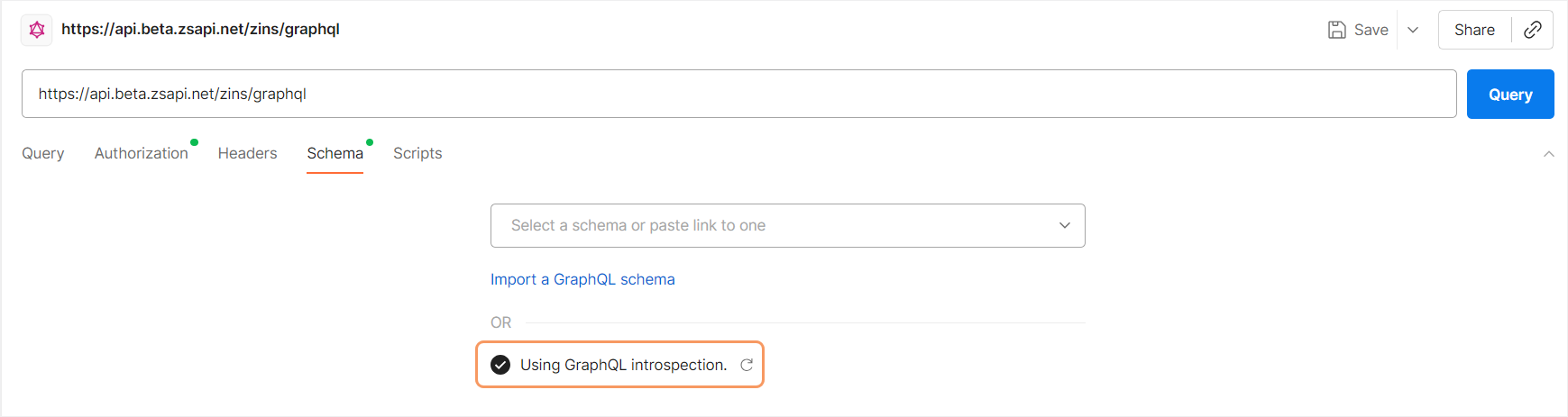
d. Go to the Query tab and verify that the schema appears in the schema explorer.
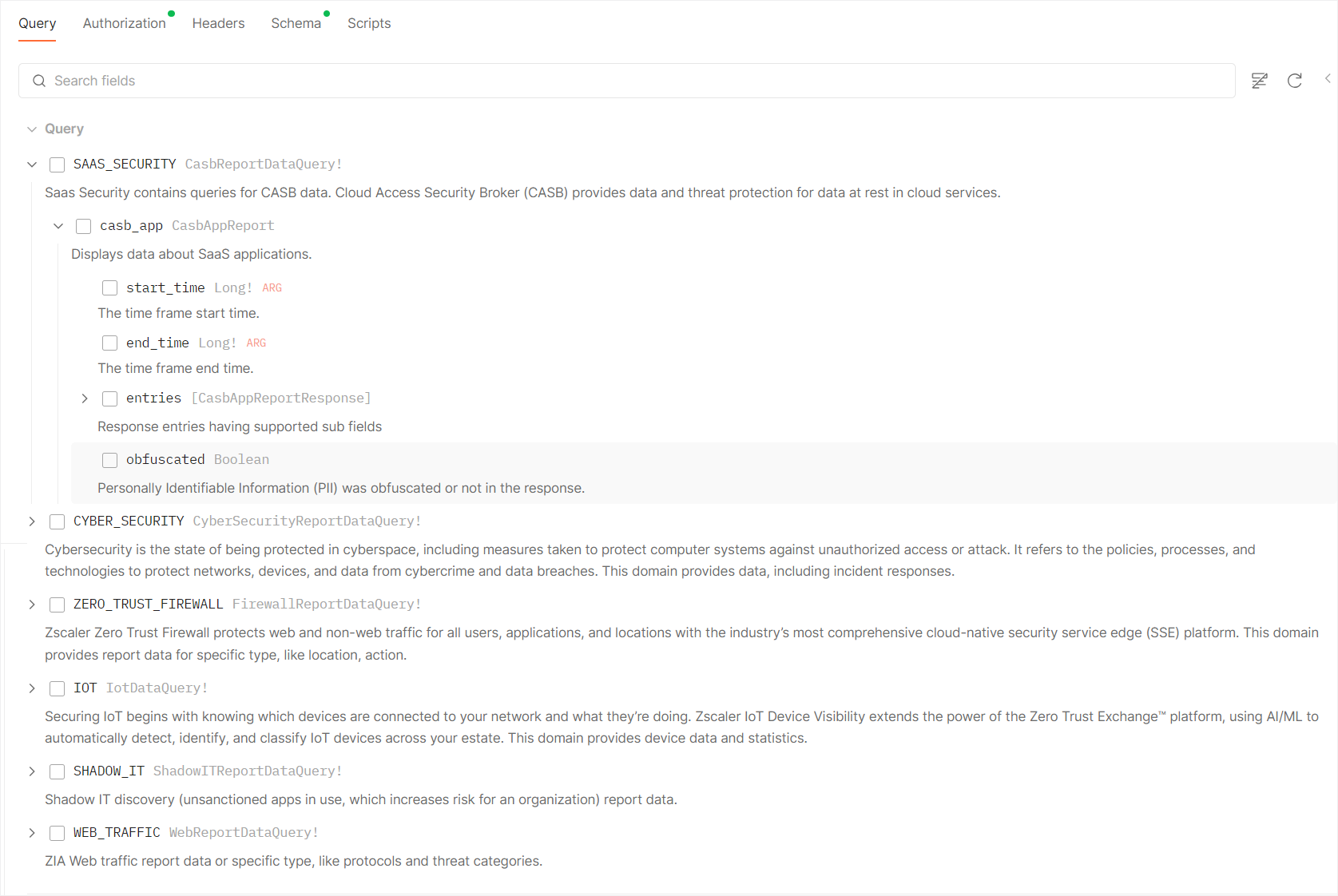
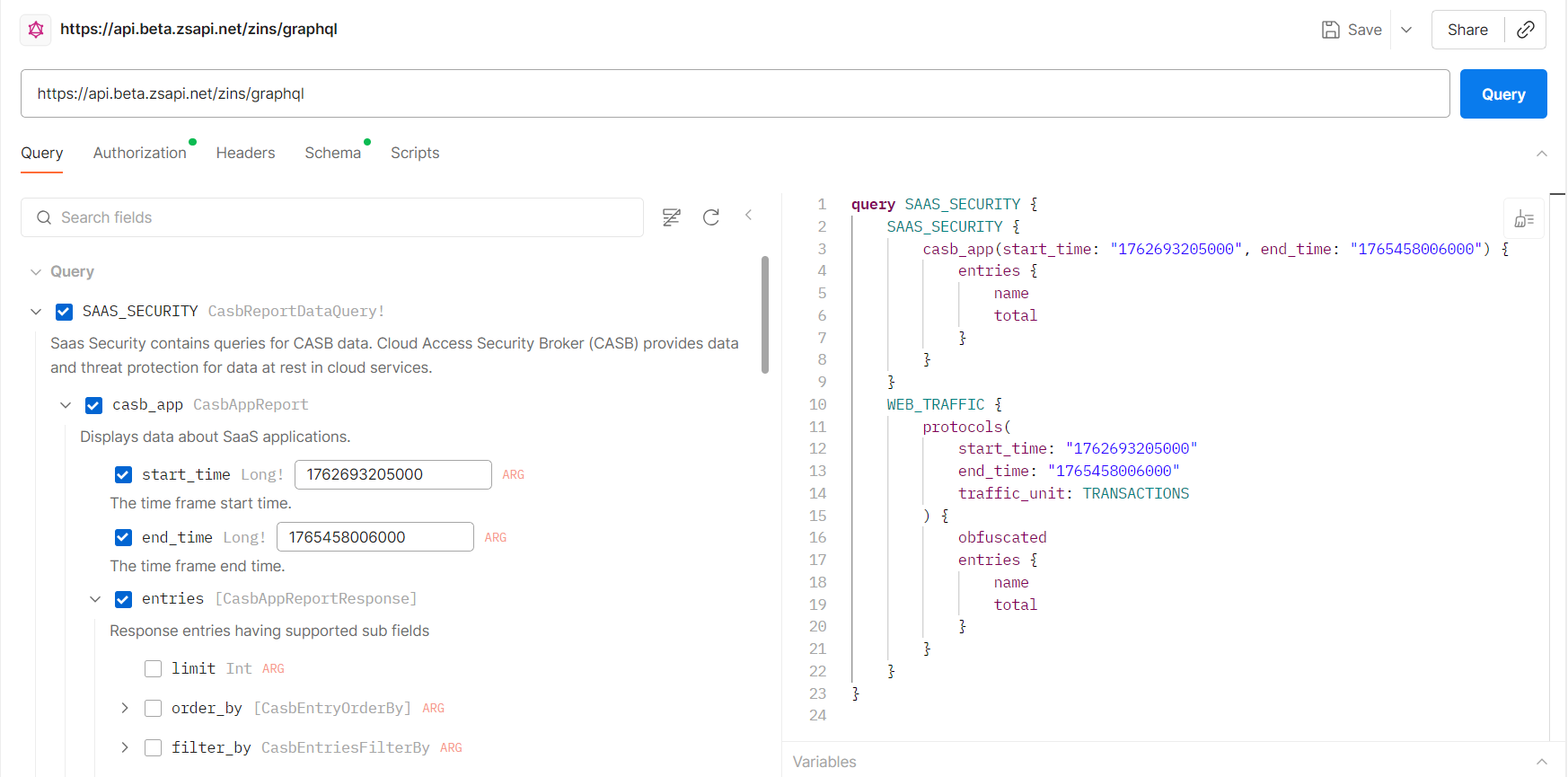
e. You can explore the schema and build a GraphQL query visually by selecting the checkboxes and providing appropriate values in the text fields, as well as select fields to be present in the response. As you select these fields, the query appears dynamically on the right panel in the query editor.
Sample Query Built Using Introspection
The following example demonstrates how you can build a query to fetch the top locations based on security incidents from the Cybersecurity Analytics domain by selecting the appropriate data fields:
-
Select CYBER_SECURITY.
-
Select cyber_security_location and select the following associated options:
a. Select categorize_by and select LOCATION_ID from the drop-down menu.
b. Select start_time and enter the value in milliseconds in the text field.
c. Select end_time and enter the value in milliseconds in the text field.
d. GraphQL allows selecting the exact fields that should be part of the response. You can do this by selecting entries and choosing the list of fields that should appear in the response:-
Select limit, and enter the number of entries to be present in the response.
-
Select id, name, and total.
You can select other options, such as order_by, order, and filter_by, depending on the use cases.
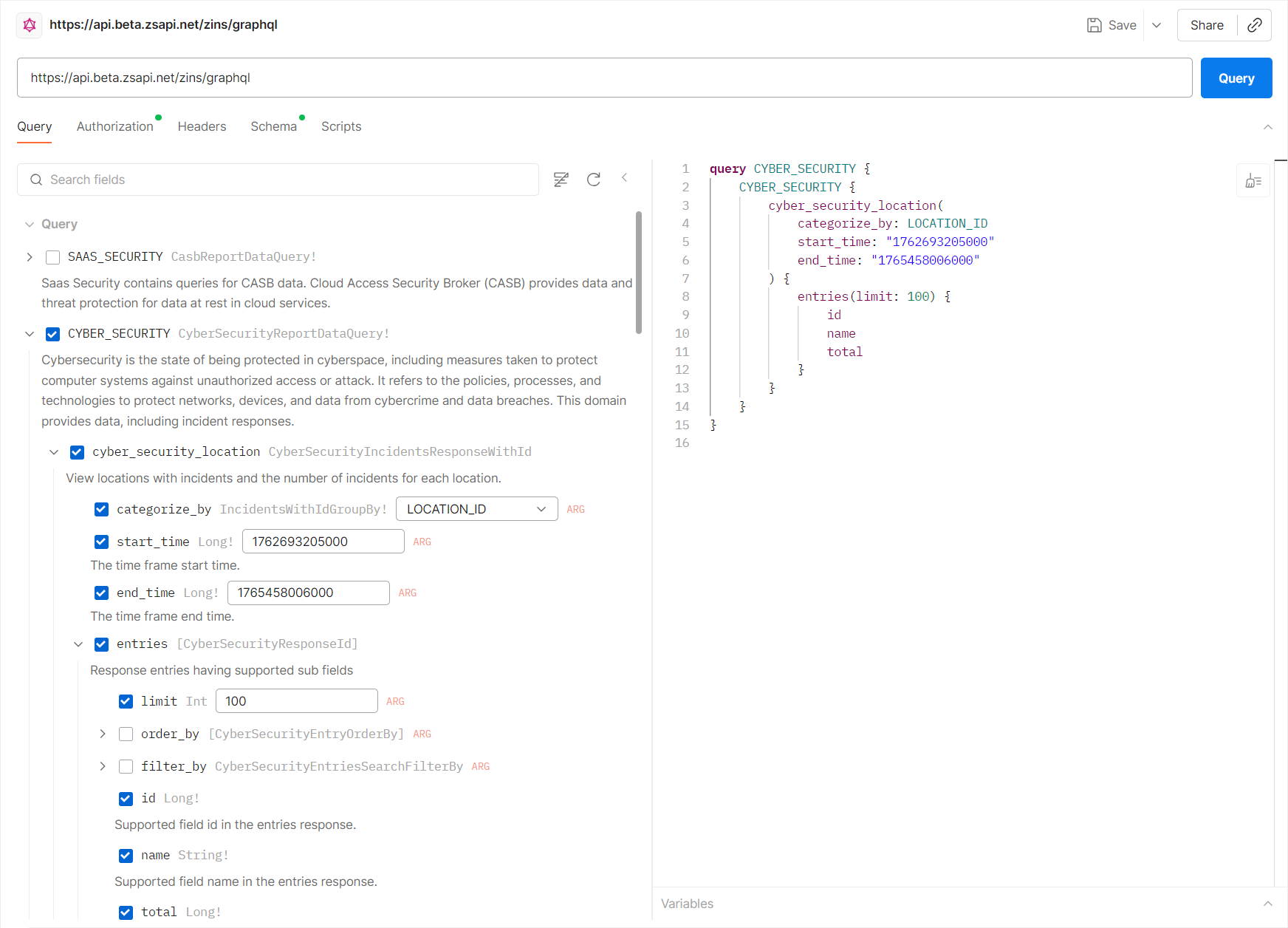 As you select these fields, the query appears dynamically on the right panel in the query editor. After selecting the necessary fields and constructing the query, you can send the API request by clicking Query that appears next to the URL field.
-
-
Make API requests.
To build a GraphQL query and make an API request from Postman.
NoteEnsure that you have included a valid access token in your API request. To learn how to generate an access token, see Set up authentication above.
a. Go to the Query tab.
b. Enter the query in the query editor.
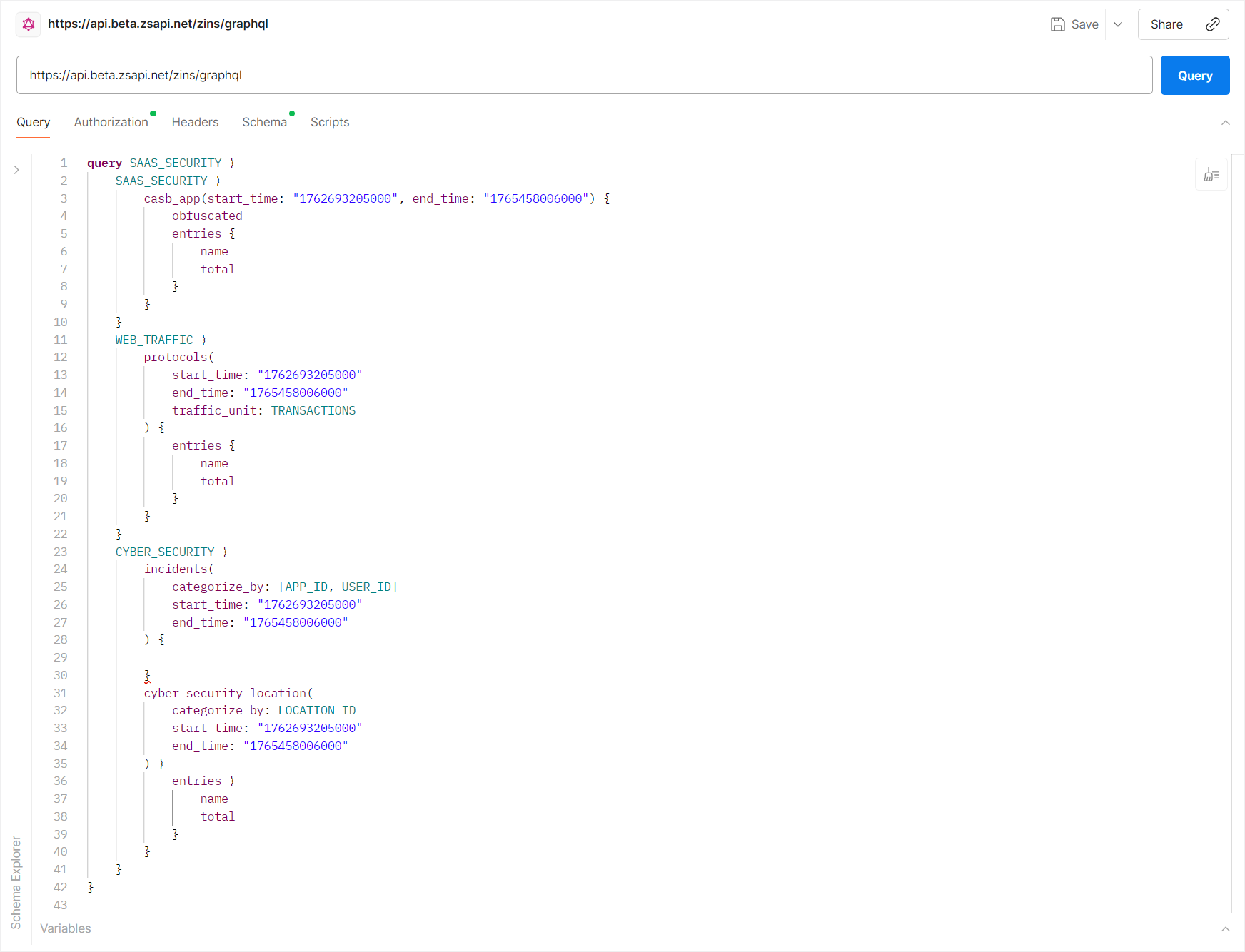
c. Send the API request by clicking Query that appears next to the URL field. For requests with multiple queries, you can select specific queries and run them individually. You can also execute queries across multiple data domains.
Multi-domain Query Example
The following request has multiple queries spanning across data domains, such as WEB_TRAFFIC, SAAS_SECURITY, IOT, and ZERO_TRUST_FIREWALL, in a single request, demonstrating GraphQL's precise and flexible data retrieval capabilities by traversing domains. In Postman, under the Query tab, you can enter the following snippet into the query editor on the right panel, then click Query next to the URL field to view the response.
        query partnerPortalQuery(
           $start_time: Long!
           $end_time: Long!
           $unit: WebTrafficUnits!
        ) {
           WEB_TRAFFIC {
               protocols(end_time: $end_time, start_time: $start_time, traffic_unit: $unit) {
                   entries {
                       name
                       total
                   }
               }
               threat_super_categories(
                   end_time: $end_time
                   start_time: $start_time
                   traffic_unit: $unit
               ) {
                   entries {
                       name
                       total
                   }
               }
               threat_class(end_time: $end_time, start_time: $start_time, traffic_unit: $unit) {
                   entries(filter_by: { name: { in: ["BEHAVIORAL_ANALYSIS", "ADVANCED"] } }) {
                       name
                       total
                   }
               }
               user(
                   end_time: $end_time
                   start_time: $start_time
                   threatClassFilter: VIRUS_SPYWARE
                   traffic_unit: TRANSACTIONS
               ) {
                   entries {
                       name
                       total
                   }
               }
           }
           SAAS_SECURITY {
               casb_app(start_time: $start_time, end_time: $end_time) {
                   obfuscated
                   entries {
                       name
                       total
                   }
               }
           }
           IOT {
               device_stats {
                   devices_count
                   user_devices_count
                   iot_devices_count
                   server_devices_count
                   un_classified_devices_count
               }
           }
           ZERO_TRUST_FIREWALL {
               location_firewall(start_time: $start_time, end_time: $end_time) {
                   obfuscated
                   entries(limit: 5) {
                       id
                       name
                       total
                   }
               }
               action(start_time: $start_time, end_time: $end_time) {
                   obfuscated
                   entries {
                       name
                       total
                   }
               }
               overall_traffic(start_time: $start_time, end_time: $end_time) {
                   obfuscated
                   entries {
                       name
                       total
                   }
               }
               network_service(start_time: $start_time, end_time: $end_time) {
                   obfuscated
                   entries {
                       name
                       total
                   }
               }
           }
        }
You can use the same start_time and end_time values across all queries by leveraging variables in Postman. The following example provides a code snippet to use for variables. Enter this code snippet with appropriate start and end time values in the Variables section, and then send the query.
        {
           "start_time": 1743552000000,
           "end_time": 1744761600000,
           "unit": "TRANSACTIONS"
        }
The API response appears in the Response section on the Query tab.
If you are using the Beta cloud environment, you can make use of introspection and build your query using the schema explorer. To learn more, see Use GraphQL schema introspection.